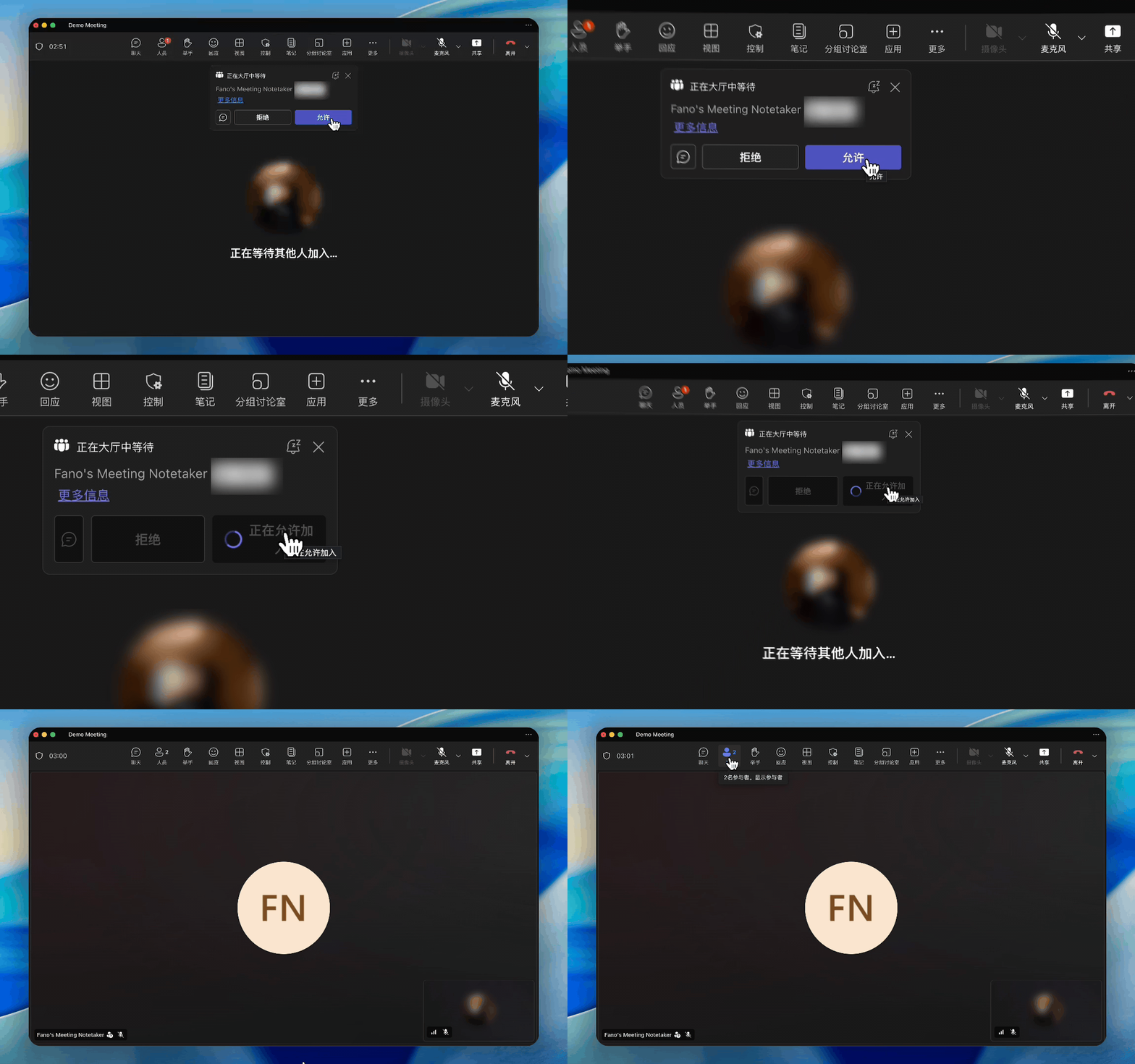
Fano Summary gives you three ways to get a meeting into the system: automatic (via calendar sync), manual (Record Now), and upload (bring your own recording). All three produce the same result — a full transcript, AI summary, and audio playback.Documentation Index
Fetch the complete documentation index at: https://fano.mintlify.app/llms.txt
Use this file to discover all available pages before exploring further.
Automatic recording (recommended)
If you’ve connected your calendar, Fano handles everything:- Your meeting starts at the scheduled time.
- The Fano note-taker bot joins the call automatically.
- All participants see the bot as an attendee.
- When the meeting ends, Fano processes the recording and generates your summary.
Manual recording — Record Now
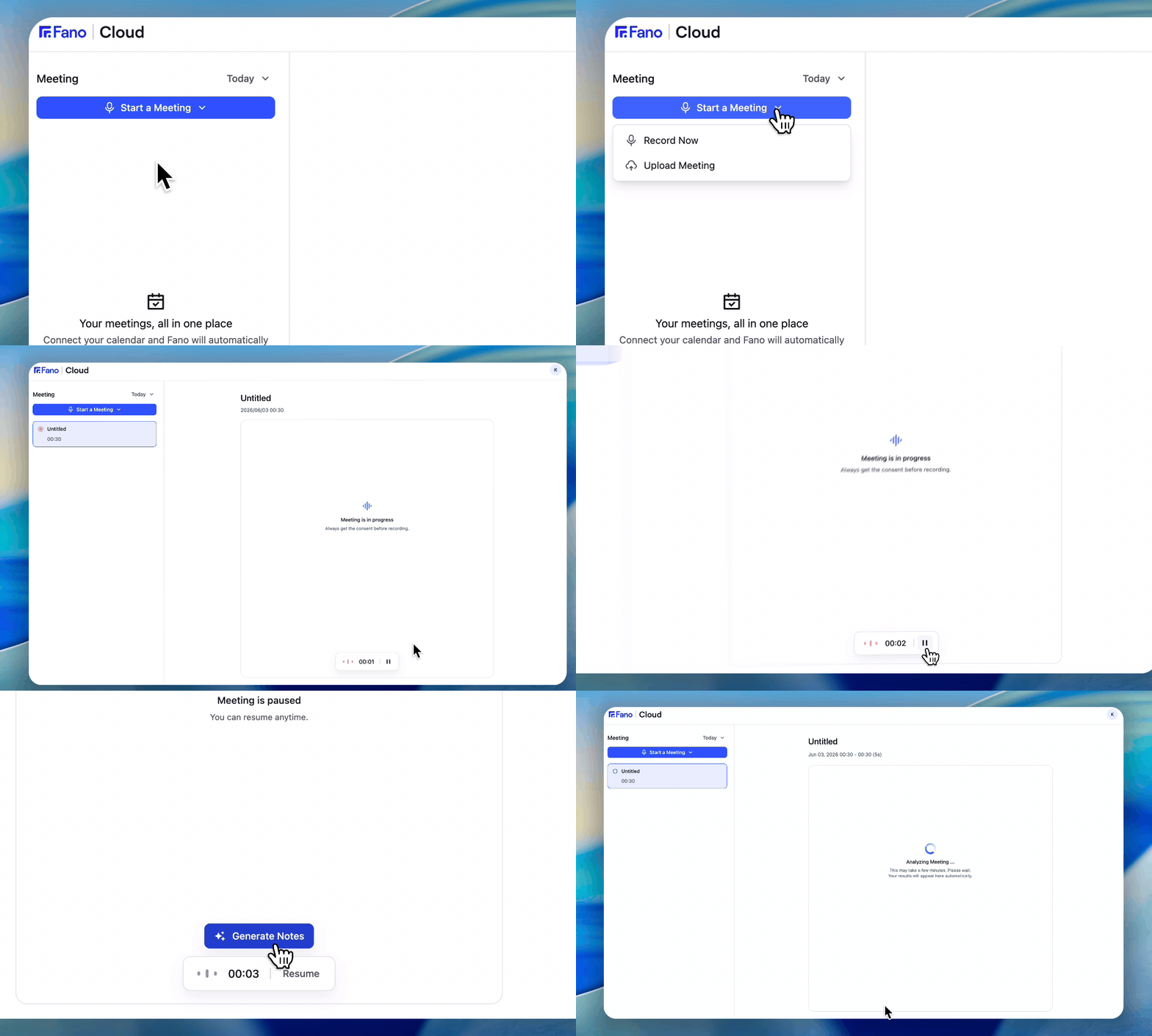
- Click Start a Meeting in the top-left of the dashboard.
- Select Record Now.
- Fano begins recording immediately using your device microphone.
- Click Stop when the meeting ends.
Upload an existing recording
If you recorded a meeting outside of Fano — on your phone, a voice recorder, or another app — you can upload the file and still get the full Fano experience: transcript, summary, and playback.- Click Start a Meeting in the top-left of the dashboard.
- Select Upload Meeting.
- Choose your audio or video file. Fano accepts common formats including MP3, WAV, M4A, MP4, and WebM.
- Fano processes the file — this may take a few minutes depending on the length.
- Once complete, the meeting appears in your sidebar with a full transcript and summary.
Which method should I use?
| Scenario | Method |
|---|---|
| Scheduled meeting with a calendar event | Automatic (bot joins on its own) |
| Ad-hoc meeting or in-person conversation | Record Now |
| Already have a recording file | Upload Meeting |
What participants see