

Connecting your calendar is what makes Fano Summary hands-free. Once linked, Fano sees your upcoming meetings and sends the note-taker bot to join each call automatically.Documentation Index
Fetch the complete documentation index at: https://fano.mintlify.app/llms.txt
Use this file to discover all available pages before exploring further.
How to connect
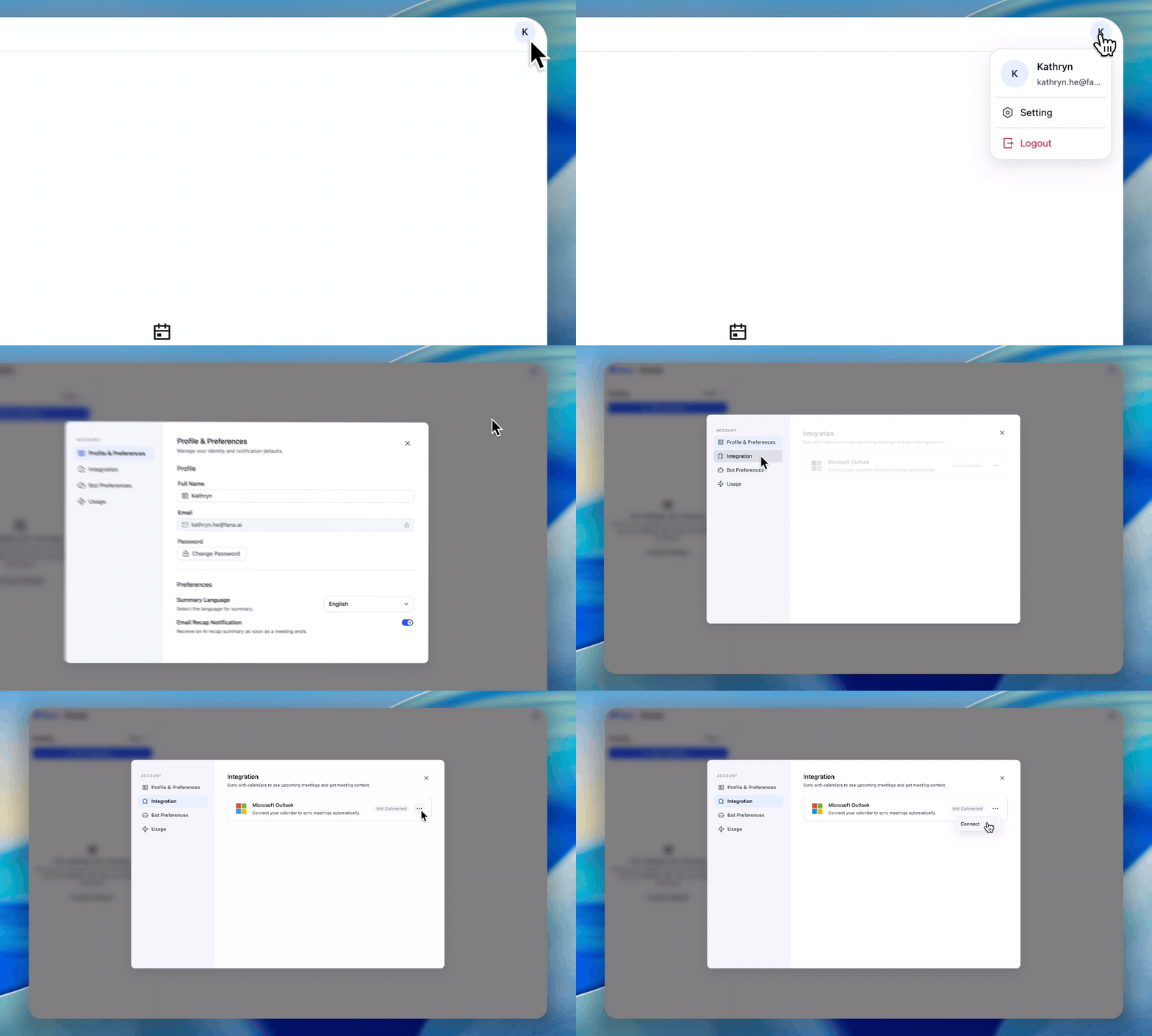
- Click your profile avatar in the top-right corner of the app.
- Select Setting.
- Go to the Integration tab.
- Find Microsoft Outlook and click Connect.
- Sign in with your Microsoft account and grant calendar access.
Fano only reads your calendar to detect meeting times and join links. It does not modify your calendar events.
What happens after connecting
- Fano scans your calendar for meetings with video call links (Teams, Zoom, or Google Meet).
- When a scheduled meeting starts, the Fano bot joins automatically — visible to all participants as a note-taker.
- Meetings appear in your Fano Summary dashboard, organized by date.
Disconnecting your calendar
If you need to disconnect:- Go to Settings → Integration.
- Click the three-dot menu (⋯) next to Microsoft Outlook.
- Select Disconnect.
Troubleshooting
I don't see my meetings after connecting
I don't see my meetings after connecting
Make sure your meetings have a video call link (Teams, Zoom, or Google Meet) in the calendar event. Fano can only join meetings that include a join link.
Connection failed or stuck on loading
Connection failed or stuck on loading
Try disconnecting and reconnecting. If the issue persists, check that your Microsoft account has the required permissions and that pop-ups are not blocked in your browser.
Can I connect Google Calendar?
Can I connect Google Calendar?
Fano Summary currently supports Microsoft Outlook. Google Calendar support is on our roadmap.