

Documentation Index
Fetch the complete documentation index at: https://fano.mintlify.app/llms.txt
Use this file to discover all available pages before exploring further.
Step 1 — Accept your invitation
Your company admin will send you an invitation email with the subject line:“You’ve been invited to join [Company Name] on Fano Summary Agent”Click “Set Up Your Account” in the email. You’ll land on a setup page where you:
- See your email (pre-filled) and company name.
- Enter your full name.
- Create a password (8+ characters, with uppercase, lowercase, and a number).
- Click “Activate Account.”
Already have an account? Go to meetings.fanocloud.com and sign in with your email and password.
Step 2 — Connect your calendar
Head to Settings → Integration and connect your Microsoft Outlook calendar. This lets Fano see your upcoming meetings and join them automatically. See Connect Your Calendar for the full walkthrough.Step 3 — Set your preferences
Before your first meeting, take 30 seconds to configure two things in Settings:| Setting | Where to find it | What to set |
|---|---|---|
| Summary Language | Settings → Profile & Preferences | Choose the language for your AI summaries |
| Bot Auto-join | Settings → Bot Preferences | ”Join all meetings” is on by default — leave it, or turn it off if you prefer manual recording |
Step 4 — Have a meeting
That’s it — just join your next call as usual. Fano will:- Join automatically as a visible note-taker bot.
- Record and transcribe the entire meeting.
- Generate a summary when the call ends.
- Email you a recap if you have email notifications turned on.
Step 5 — Review your notes
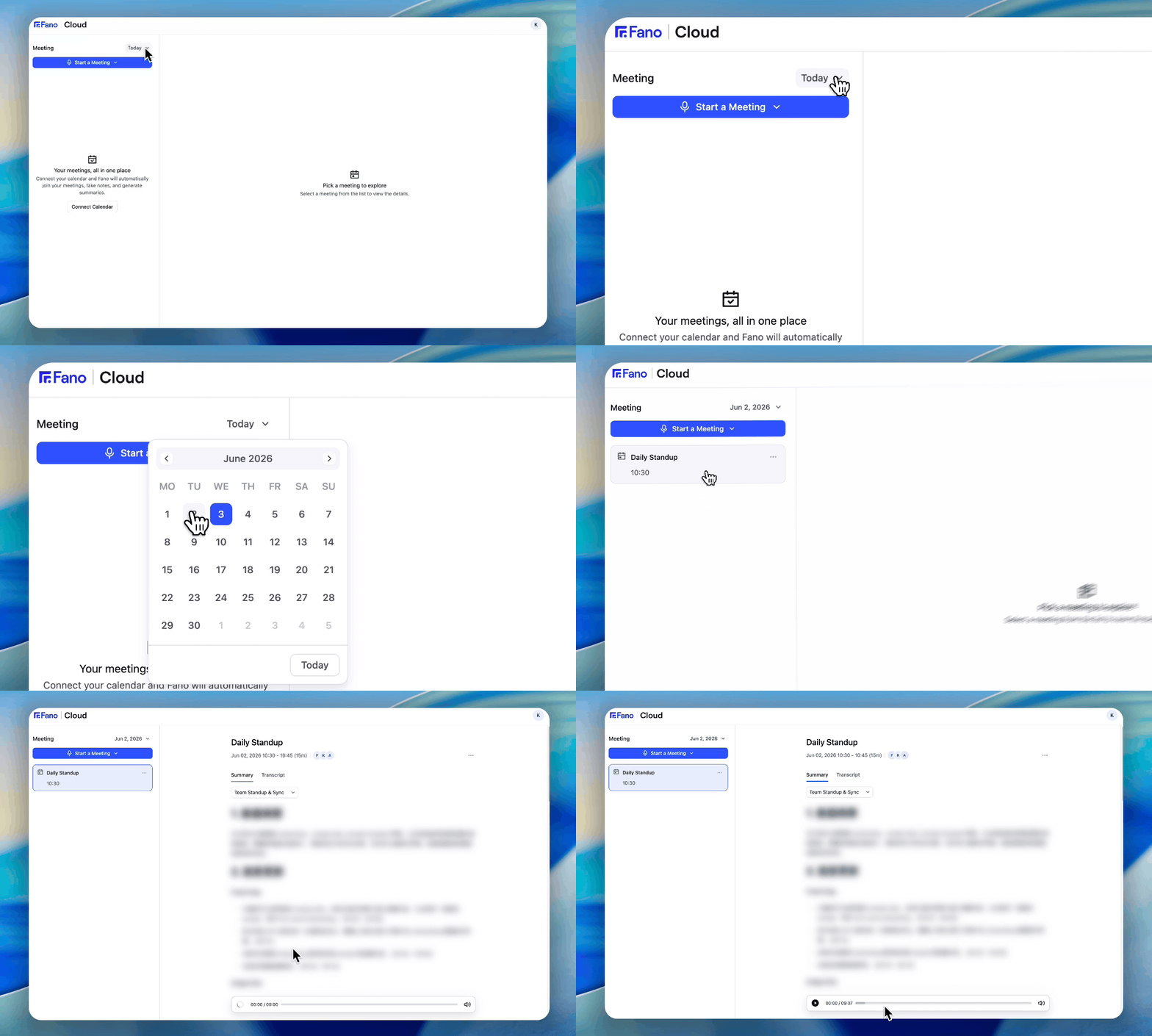
- Summary — AI-generated notes organized by topic
- Transcript — Full transcript with speaker labels and timestamps
- Audio — Playback bar at the bottom to re-listen to any part
What’s next?
Recording Meetings
Learn about auto-join, manual recording, and uploading.
Meeting Summaries
Explore the 9 built-in templates for different meeting types.